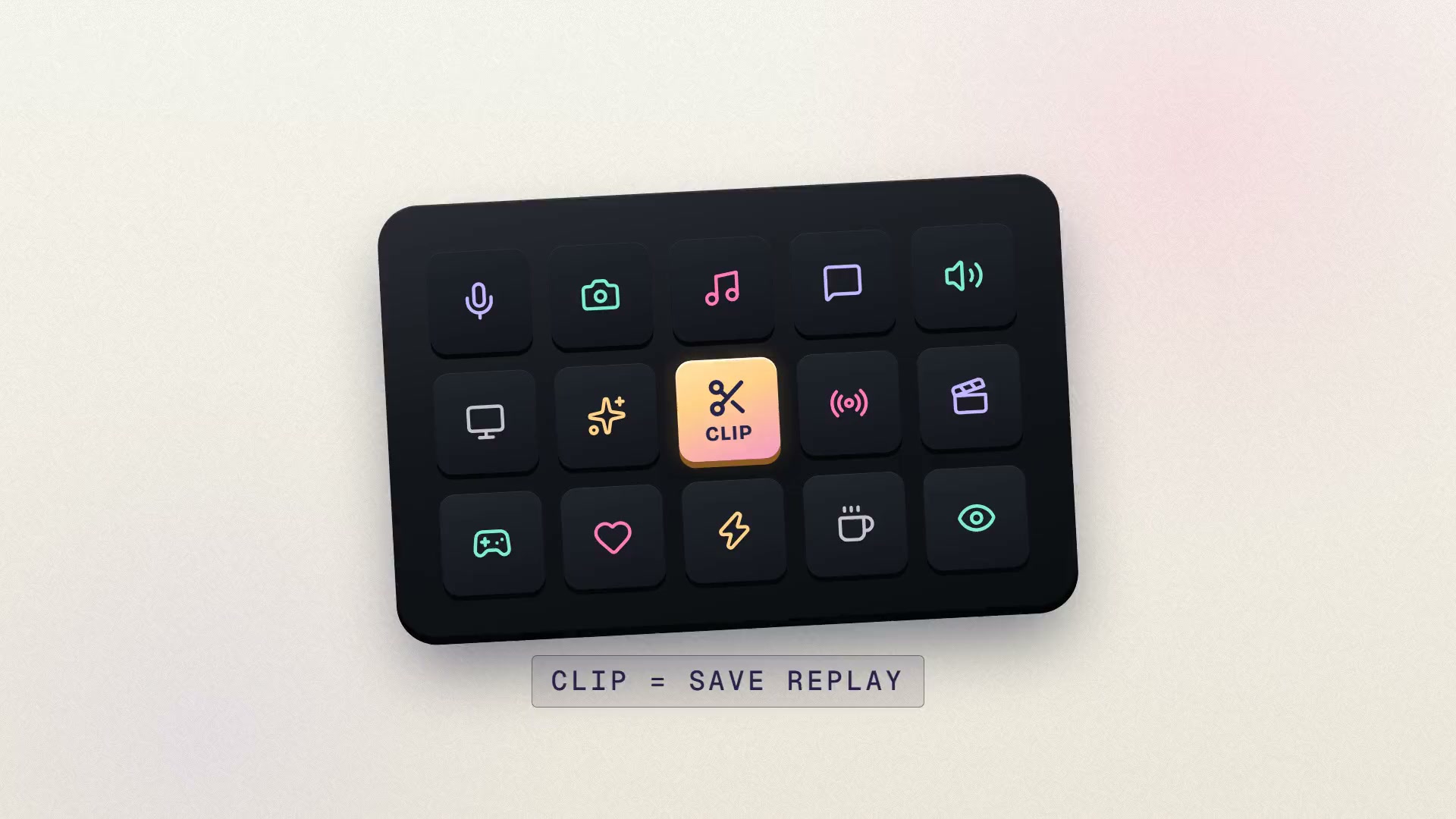
A CLIP key on your Stream Deck
Add the OBS Studio "Save Replay" action (not "Replay Buffer", which turns the buffer on or off). No StreamClipping plugin to install.
Your best live moment no longer gets lost in the VOD. Hit Save Replay from your Stream Deck, a hotkey or your phone: StreamClipping cuts the vertical clip with captions, title and hook, and AutoPilot posts it.
From the button to the post, without leaving your stream.
Anything that can fire OBS's Save Replay becomes a clip button.
Add the OBS Studio "Save Replay" action (not "Replay Buffer", which turns the buffer on or off). No StreamClipping plugin to install.
In the OBS hotkeys, assign a key to saving the Replay Buffer.
Touch Portal, Streamer.bot and any tool that drives OBS can fire Save Replay: one more button, or a chat command.
From your phone or a second screen, one click in StreamClipping and your computer saves the clip.
Say "clip now" to Claude or ChatGPT connected to StreamClipping (MCP): the agent saves the moment in OBS.
No command line, no password to copy.
OBS Studio 28 or later. On first launch, Windows or macOS may ask you to confirm: that is expected, the FAQ explains what to do.
A small agent that sits by the clock and sends no video until you press.
Your stream, your screen and your files stay with you. Only the moment OBS keeps is sent.
By default, OBS keeps nothing before your stream: the buffer starts with your stream or recording, then stays on until you close OBS.
The agent updates on its own, never during a stream or an upload.
In the agent menu, "Keep the last minute" has two settings.
OBS keeps nothing before your stream. The Replay Buffer starts with your stream or recording, then stays on until you close OBS.
As soon as OBS is open, the last minute is kept. Handy to clip a rehearsal or a moment off stream.
StreamClipping plugs into Claude, ChatGPT, Cursor and other MCP-compatible assistants. You ask in one sentence, it does the work, live or after.
"Clip now" follows the clip button rule: included in Creator, Pro, and Elite, with the agent linked to your account and OBS open. Everything else is open on every plan.
OBS Studio, version 28 or later. Streamlabs Desktop is not supported.
Yes, on Windows and on Mac. Same agent, same button.
Only what OBS keeps at the moment you press: the last minute, set by the agent (more if you chose a longer duration in OBS). The clip is cut from the last 30 or 60 seconds, your choice in the agent. Your continuous stream, your screen and your files are never sent.
That is the SmartScreen message for new software. Click "More info", then "Run anyway". On Mac, on first launch: System Settings, Privacy & Security, then "Open Anyway".
Creator, Pro, and Elite. And during the trial: 7 days of Elite free on signup, no credit card.
No. The agent turns on the OBS WebSocket server and the Replay Buffer, keeping one minute. If you already set a longer duration, it keeps yours. One setting stays yours: the OBS recording format must be mkv or mp4 (a .ts replay is rejected); the agent does not change it.
They work together: auto-clip spots moments on its own, the clip button lets you pick yours.
Try 7 days of Elite free, no credit card: the clip button is included.